Learning by teaching

Be a teacher for free
TRADING KNOWLEDGE WITH OTHERS IS GOOD FOR EVERYONE
Teaching an individual or a group can be fun.

It’s surprising how much you can learn by teaching something.

Here at the Sarasota Technical Users Group we offer a teaching opportunity. The classes we offer are popular and we’d like to offer more. Yes, YOU can teach… and learn by doing!

You don’t have to be an expert of anything, just share a willingness to explore with others. There are so many apps out there and so much technology others want to learn that many people are missing great learning experiences – even you!

This is the main purpose of STUG – to provide knowledge and learning opportunities using our member volunteers.

Pick a tech topic or app you are enjoying, even if there are many aspects of it you’re still exploring – and have a go at “hosting” a class. We are all volunteers and we need each other to trade our tech experiences. Will you share your experiences with others? That’s all we are asking.

Our volunteer instructors are free to teach almost anything tech-related. Our classes are on Zoom so you don’t even have to leave your home to host a class. You decide the schedule. Those attending your session will help you by asking questions – and there is nothing wrong in saying “I don’t know”. Regardless of the knowledge level, EVERYONE benefits!

Please send me an email at jimcerny123@gmail.com and let’s talk about it. We are very flexible and I would be happy to answer any questions you have and consider your ideas. Pick a topic – how about driverless cars, 3D printing, car-phone connections, using Amazon, buying airline tickets on-line, cable and free TV connections, and so much more.

What tech topics are you most interested in these days? Why not help us help others?

Is this you?

Stun the younger members of your family with all you learn…

If so, join us. We know that no one knows everything, and we’re devoted to helping you make the most of your screen time. With multiple ways to get help for just that small yearly dues, we might save you time, frustration… and help you stun the younger members of your family with info even THEY didn’t know.

How Hewie gave me a week of my life back.

You see, I’d spent a week’s worth of spare time trying to do something, looking at programs and apps and basically tearing my hair out, when it occurred to me…

Continue reading “How Hewie gave me a week of my life back.”

Now, I don’t mean to single Hewie out from all the helpful souls I know in STUG, ’cause there are many!… but he makes a good headline and besides he has these adorable mutton chops.

You see, I’d spent a week’s worth of spare time trying to do something, looking at programs and apps and basically tearing my hair out, when it occurred to me…

Continue reading “How Hewie gave me a week of my life back.”

Ctrl yourself.

Here’s a Tuggie the Techno-Owl tip for you. (You know that Tuggie’s smart enough to know that nobody knows everything, and discrete enough to teach you things you can claim to have always known.)

A short history of a shortcut key.

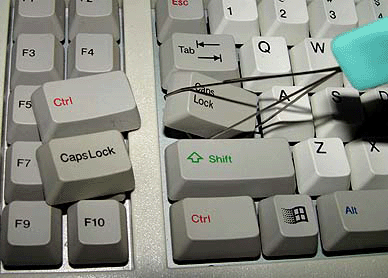
Like many other elements of the computer keyboard, the control key is a vestige of earlier technology updated and adapted to remain relevant. Originally found on teletype machines, the key produced special key codes that were not printed or displayed on the screen, but controlled some aspect of the machine’s operation. Some examples of past use of these codes include Ctrl+J for a line feed, Ctrl+H for backspace, and even Ctrl+G to ring a bell in the terminal.

The “working gals” at their teletypes.

So, what does the Ctrl key let you do?

Well, that depends: The Ctrl key has no function on its own. It only performs commands when combined with other keys. These commands vary depending on the active window. For example, it will perform different commands when used in a word processing program than when used in an internet browser or the operating system.Here’s a starter list of things you can do… but play around, and make note of those functions that suit how you use your computer.

Ctrl+A These two keys will select all text or other objects (warning: all really means ALL! Try it and see.)
Ctrl+B Bold highlighted text.
Ctrl+C Copy any selected text or another object.
Ctrl+D Bookmark an open web page or open font window in Microsoft Word.
Ctrl+E Center text.
Ctrl+F Open find window.
Ctrl+G Open Find in a browser and word processors.
Ctrl+H In Chrome browser, opens your browsing history. In Notepad, Microsoft Word, and WordPad it opens Find and Replace.
Ctrl+I Italicize text.
Ctrl+J View downloads in browsers and set justify alignment in Microsoft Word.
Ctrl+K Create a hyperlink for the highlighted text in Microsoft Word and many HTML editors.
Ctrl+L Select address bar in a browser or left align text in a word processor.
Ctrl+M Indent selected text in word processors and other programs.
Ctrl+N Opens a new window in Chrome browser; in other programs, creates a new page or document.
Ctrl+O Open a file in most programs.
Ctrl+P Open a print window to print the page you’re viewing.
Ctrl+R Reload page in browser or right align text in a word processor.
Ctrl+S Save the document or file.
Ctrl+T Create a new tab in a browser or adjust tabs in word processors.
Ctrl+U Underline selected text.
Ctrl+V Paste any text or another object that has been copied.
Ctrl+W Close open tab in a browser or close a document in Word.
Ctrl+X Cut selected text or another object.
Ctrl+Y These keys will redo any undo action.
Ctrl+End Moves cursor to the end of a document instead of end of the line.
Ctrl+Z Pressing these two keys will undo any action.
Ctrl+Esc Open the Windows Start Menu.
Ctrl+Tab Switch between open tabs in browsers or other tabbed programs.
Ctrl+Shift+Tab will go backwards (right to left).

More info:

No, I mean *exactly* where?

Tired of missed connections? There’s something I just discovered on Google Maps that might help. It’s called Plus Codes.

Plus Codes work similar to street addresses. They can help you get and use a simple digital address. They can also help you define a specific location for a conventional address. For example, you can identify different entrances to the same building. 

… or for example where in Phillippi Estate Park to meet (here’s an example:
7F98+X8 ), or the location you’ve staked out on Siesta Beach. You can even get directions.

Plus Codes is actually designed for what is called “the unaddressed”, people’s residences or businesses that through tradition or oversight don’t have postal addresses, but as you see, it works in what in our area would be considered wilderness.

How to get, and how to share, and how to utilize Plus Codes.

As you can see, you can now tell people exactly where to go. A boon to mankind.

See you at the Gazebo!