

Tuggie’s smart enough to know that nobody knows everything, and discrete enough to teach you things you can claim to have always known.
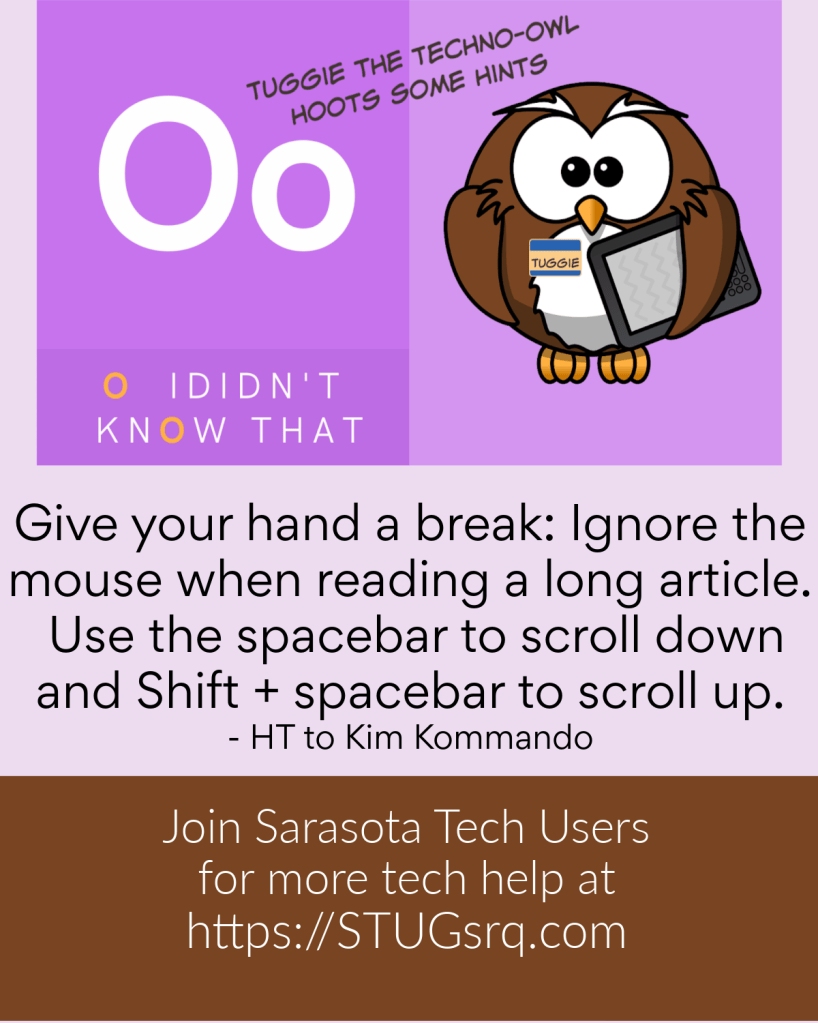
Tuggie’s smart enough to know that nobody knows everything, and discrete enough to teach you things you can claim to have always known.
Assuming you’re dining alone, or with an understanding and forgiving co-diner, you can eat some brain-food before the fried mozzarella sticks arrive, in a few seconds with these tips from Kim Komando.
Kim‘s a fun one to follow, for real-life tips.

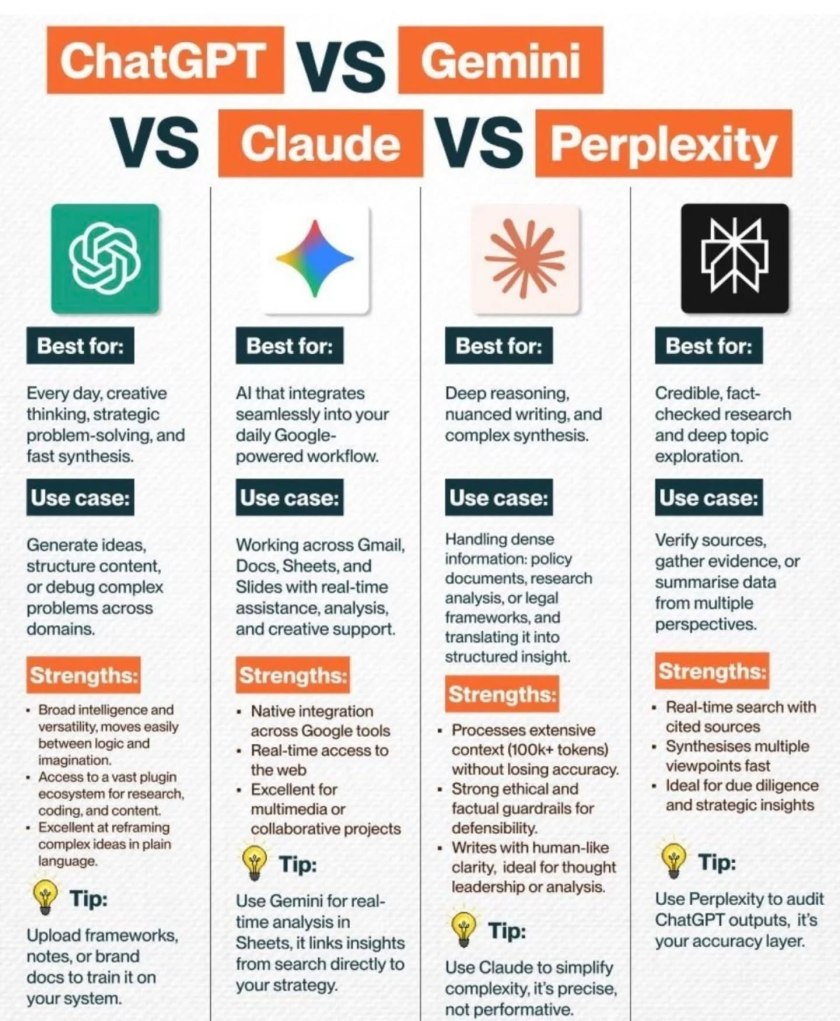
And just for laughs, some sites you might never have seen before that will help you use AI the bestest ways:
Found this interesting article at neal.fun.
Websites on the internet are constantly trying to get you to complete actions. Whether it’s buying something, reccomending a friend or posting private information, there is a lot of value in getting you to perform specific actions. However, some websites go too far and try to trick or mislead you into doing what they want. This has led to what are called “Dark Patterns”, or shady ways of tricking you into performing actions without you knowing. Read more here.

Editor’s Note: I was going to title this post “Unfriendly Persuasion” but decided the reference was a bit outdated. See what I mean?

But back to business. Neal.fun is, as the name implies, a lot of fun. For example, “Where does the day go?”
Home is where your e-knowledge is. You have all you need, right? Everything about your e-setup is cozy and easy to use. You know your smartphone’s tricks like the back of the hand that’s always holding it, right?

And you seldom have to use an e-map at home. After all, when BFF says to meet by the Dolphin Fountain, you know exactly how to get there. But what happens when your travel buddy says “I’m just past the gelato stand” and you can’t find the stand or them? Here’s the secret map setting to use.

But then you get on your plane to Timbuktu* and you have to set your phone to airplane mode. Let’s face it: it’s a looong flight and your companion wants to listen to their podcasts or watch that classic movie they’ve always meant to watch… can they, in airplane mode? Yup. We’ve prepared a printable summary of what airplane mode can do for you to tuck into your carryon. It’s from the STUG Monitor, a members-only benefit. Want to subscribe?
* Why do we say Timbuktu when we mean strange, far-off place? I wondered too.
[Article written by Kate Holmes, STUG volunteer, with organizing help from Claude AI. I was too shook up to take proper notes of the fiasco.]
I recently got a new laptop and set merrily to, transferring my digital life from old to new. I’ve done this before. I know what I’m doing. Or so I thought. I finished the switchover in record time. Or so I thought.
Within the first few days, I noticed something odd. Files I was sure I’d saved to my Desktop weren’t where I expected them. Documents I’d created weren’t in my Documents folder — or rather, they were, but the folder wasn’t where it was supposed to be. Things felt slightly off in a way that was hard to pin down.

When you set up a new Windows 11 machine, or often when Windows 10 upgrades to Windows 11, OneDrive doesn’t just offer to back up your files. It goes ahead and redirects your core folders — Desktop, Documents, and Pictures — into its own sync folder, deep inside your user directory. Your Desktop is no longer at C:\Users\YourName\Desktop. It’s now at C:\Users\YourName\OneDrive\Desktop.
The folders look exactly the same on screen. The Desktop still looks like a desktop. Documents still looks like Documents. Nothing waves a flag to tell you that these locations have been silently relocated into Microsoft’s cloud sync system.
This matters for several reasons:
* Files you think are local may actually be in the cloud even only in the cloud, if OneDrive decides to free up local space
* If your internet connection drops, OneDrive can lose the plot. Files can appear to vanish or become inaccessible
* Anything that syncs to the cloud is subject to Microsoft’s terms, not just sitting quietly on your hard drive
* If you later unlink OneDrive, those redirected folders can end up stranded in unexpected locations
And here’s what happened to me: I accidentally sent a very large folder to the Recycle Bin during cleanup. Because it was inside OneDrive, recovering it was a hair-tugging exercise. It worked out, but only because I caught it fast (and I had AI on my side.)
If you are upgrading an existing machine from Windows 10 to Windows 11, you may hit the same issue. The Windows 11 setup process prompts you to sign in with a Microsoft account and strongly nudges you toward OneDrive backup. Many people click through those screens without realizing what they’re agreeing to. The folder redirect can happen during that process just as easily as it did on my brand-new machine.
If you’re already on Windows 11 and you’re not sure whether this has happened to you, here’s the quick check: open File Explorer, right-click on your Documents folder, choose Properties, and look at the Location tab. If the path shown contains the word “OneDrive,” your folder has been redirected.
On a new machine, before you do anything else: when Windows setup asks about OneDrive backup, decline it, or at minimum, uncheck the folder redirection options. You can always set up OneDrive manually later, on your own terms.
If the redirect has already happened: you can move the folders back. Right-click the folder → Properties → Location → Restore Default. Windows will move everything back to the local path. Do this before you unlink OneDrive, or things get complicated. [Note from Kate: Claude AI says this. I didn’t try that, so you’re on your own; remember, AI ain’t always right.]
Get your files settled, your folder structure sorted, and your backup solution chosen deliberately. You might choose OneDrive, Dropbox, Google Drive, or something else. Only after you’re happy with your structure should you set up cloud sync on your own terms.
Now I assume that OneDrive is not a bad product. For people who want seamless cloud backup and don’t mind their files living in Microsoft’s ecosystem, it works well. But the way Windows 11 deploys it, silently, during setup, without a clear explanation of what folder redirection actually means, is a genuine gotcha. It catches experienced users, not just beginners.
Photo credits Designboom.com, Sunday Robotics
This article comes to STUG through STUG’s membership in APCUG, the International Association of Technology and Computer User Groups.
First, check that you have the latest Zoom version at www.zoom.us/download. Join a meeting by clicking on the unique link your group has sent you.
Check your audio and video
Move your mouse to the bottom left of your monitor/screen to activate the Zoom Toolbar. You will see the icon for the audio (mic) and video (camera). Click the caret (^) beside either icon and make sure the correct devices are selected. You can also select “Test speaker & microphone” in Windows or go to audio settings in Linux.
Need to change your name? “BooBoo” might be perfect for your family Zoom, but if you’d rather not share that nickname with the world, You can adjust what participants in the current meeting see. Move your mouse to the top-right corner of your tile, then click the three dots or right-click on the box. From the menu, select “Rename,” enter your correct name, and then click “Change.” Now, you are ready to sit back and enjoy the Workshop. You can also click on the “Participants” icon, find your name, click the three dots, and select “Rename.”
Hear. How well you “hear” what’s being said is under your control. You adjust the volume either in Zoom’s audio settings (caret (^) next to the mic) or in your device’s volume settings. It has been noticed that, at times, the volume on your device may not be accurately reflected in Zoom. Therefore, you will need to adjust Zoom’s audio settings.
See. What you “see” during the Workshop is also under your control. Your first adjustment is how you see the main screen. In the top right corner, you will have a “tic-tac-toe” button. You have a number of choices, including: “Speaker” (where you see the person speaking in a big window and other attendees in a filmstrip) and “Gallery” (where you see attendees in rows—Hollywood Squares). We recommend the Speaker view, as you are here to see the presenter. The “Gallery” view may have additional screens, depending on the number of attendees and the number of tiles your device can display simultaneously. You can also view the meeting in “Fullscreen” mode.
View. When the presenters are sharing their screens, you have a second set of “viewing” controls. Move your mouse to the top-left center of your screen, where you should see a tab labeled “Presenter’s screen” with a circle and three dots. There, you can select the “Zoom ratio” and make it easier to see if your screen is too small. You can also remove the attendee’s filmstrip by checking “Hide video panel.”
Open Mic. If there is an “Open Mic Q&A” and you want to ask a question or share a comment, click the raised-hand icon on the Zoom taskbar. If you don’t see it, check under “More” or under the “React” icon. This puts you at the top of the attendees list and lets the leader know you want to speak. When it’s your turn, you will see “Please unmute your mic.” Please click your “Audio icon” (the mic) and unmute yourself, and then you can speak.
APCUG hopes that these instructions and reminders will help make your participation in any workshop or presentation a pleasant experience.
Thanks to John Kennedy of APCUG
I’d been running my business on WordPress for years and felt comfortable with all its ins and outs. So when the call went out for a WordPress instructor I raised my hand. “I can do that.” Like I said, I was at ease with that piece of software.
When I volunteered to teach a class, oh boy did I learn! I ended up learning as much as my students did. It was such a rewarding experience that I did another class.
If you like to learn, and/or like to teach, STUG has a place you can do so! Since 1982, the Sarasota Technology Users Group (STUG) has been a completely volunteer organization.

Many of us have learned the quickest way to become proficient in something is to teach it to others. We are always open to new topics, speakers and instructors. Get in touch with our President, Jim Cerny, at jimcerny123@gmail.com or Education Czar Bill Crowe at wtcrowe@verizon.net or 941-441-5158.
More comfortable doing research and writing on uses or aspects of current technology? We’d love to expand the Monitor with your articles if you have a love of and flair for writing. Contact Jim with your ideas.
Refurbish Group Manager Mike Hutchinson is always looking for volunteers. Think you’d like to help? This aspect of STUG is a blessing to our entire community. Learn more at https://refurbproject.org/
We hope your brain’s tick-tocking right now with something you can do to make STUG ever bigger, better, and more valuable to all of us. Remember, skill levels of our members range from “I don’t know how to turn the ‘thing’ on” to “let me show you how to disassemble and reassemble this device blindfolded, in a closet, in 27 seconds”. If you have any questions, ideas, suggestions, please don’t hesitate to reach out to us at STUG.