
OneDrive Almost Ate My Files

A cautionary tale for anyone setting up a new Windows 11 machine — or upgrading from Windows 10

[Article written by Kate Holmes, STUG volunteer, with organizing help from Claude AI. I was too shook up to take proper notes of the fiasco.]

I recently got a new laptop and set merrily to, transferring my digital life from old to new. I’ve done this before. I know what I’m doing. Or so I thought. I finished the switchover in record time. Or so I thought.

Within the first few days, I noticed something odd. Files I was sure I’d saved to my Desktop weren’t where I expected them. Documents I’d created weren’t in my Documents folder — or rather, they were, but the folder wasn’t where it was supposed to be. Things felt slightly off in a way that was hard to pin down.

What had happened? OneDrive had quietly moved in and rearranged the furniture. Without asking.

What OneDrive Does (That Nobody Tells You)

When you set up a new Windows 11 machine, or often when Windows 10 upgrades to Windows 11, OneDrive doesn’t just offer to back up your files. It goes ahead and redirects your core folders — Desktop, Documents, and Pictures — into its own sync folder, deep inside your user directory. Your Desktop is no longer at C:\Users\YourName\Desktop. It’s now at C:\Users\YourName\OneDrive\Desktop.

The folders look exactly the same on screen. The Desktop still looks like a desktop. Documents still looks like Documents. Nothing waves a flag to tell you that these locations have been silently relocated into Microsoft’s cloud sync system.

This matters for several reasons:
* Files you think are local may actually be in the cloud even only in the cloud, if OneDrive decides to free up local space
* If your internet connection drops, OneDrive can lose the plot. Files can appear to vanish or become inaccessible
* Anything that syncs to the cloud is subject to Microsoft’s terms, not just sitting quietly on your hard drive
* If you later unlink OneDrive, those redirected folders can end up stranded in unexpected locations

And here’s what happened to me: I accidentally sent a very large folder to the Recycle Bin during cleanup. Because it was inside OneDrive, recovering it was a hair-tugging exercise. It worked out, but only because I caught it fast (and I had AI on my side.)

This Isn’t Just a New Laptop Problem

If you are upgrading an existing machine from Windows 10 to Windows 11, you may hit the same issue. The Windows 11 setup process prompts you to sign in with a Microsoft account and strongly nudges you toward OneDrive backup. Many people click through those screens without realizing what they’re agreeing to. The folder redirect can happen during that process just as easily as it did on my brand-new machine.

If you’re already on Windows 11 and you’re not sure whether this has happened to you, here’s the quick check: open File Explorer, right-click on your Documents folder, choose Properties, and look at the Location tab. If the path shown contains the word “OneDrive,” your folder has been redirected.

What To Do About It

On a new machine, before you do anything else: when Windows setup asks about OneDrive backup, decline it, or at minimum, uncheck the folder redirection options. You can always set up OneDrive manually later, on your own terms.
If the redirect has already happened: you can move the folders back. Right-click the folder → Properties → Location → Restore Default. Windows will move everything back to the local path. Do this before you unlink OneDrive, or things get complicated. [Note from Kate: Claude AI says this. I didn’t try that, so you’re on your own; remember, AI ain’t always right.]

Learn from my mess: unlink OneDrive before doing anything else on a new Windows machine.

Get your files settled, your folder structure sorted, and your backup solution chosen deliberately. You might choose OneDrive, Dropbox, Google Drive, or something else. Only after you’re happy with your structure should you set up cloud sync on your own terms.

Now I assume that OneDrive is not a bad product. For people who want seamless cloud backup and don’t mind their files living in Microsoft’s ecosystem, it works well. But the way Windows 11 deploys it, silently, during setup, without a clear explanation of what folder redirection actually means, is a genuine gotcha. It catches experienced users, not just beginners.

Consider yourself warned.

Speaking of cloud storage options — I asked Claude to put together a comparison chart of the major services, including OneDrive, Google Drive, Dropbox, iCloud, pCloud, and MEGA, showing free tiers, pricing, and sync capabilities. [View or print the chart here.]

Photo credits Designboom.com, Sunday Robotics

How to Zoom Like a Pro

This article comes to STUG through STUG’s membership in APCUG, the International Association of Technology and Computer User Groups.

First, check that you have the latest Zoom version at www.zoom.us/download. Join a meeting by clicking on the unique link your group has sent you.

Settling in

Check your audio and video

Move your mouse to the bottom left of your monitor/screen to activate the Zoom Toolbar. You will see the icon for the audio (mic) and video (camera). Click the caret (^) beside either icon and make sure the correct devices are selected. You can also select “Test speaker & microphone” in Windows or go to audio settings in Linux.

Need to change your name? “BooBoo” might be perfect for your family Zoom, but if you’d rather not share that nickname with the world, You can adjust what participants in the current meeting see. Move your mouse to the top-right corner of your tile, then click the three dots or right-click on the box. From the menu, select “Rename,” enter your correct name, and then click “Change.” Now, you are ready to sit back and enjoy the Workshop. You can also click on the “Participants” icon, find your name, click the three dots, and select “Rename.”

During the Meeting

Hear. How well you “hear” what’s being said is under your control. You adjust the volume either in Zoom’s audio settings (caret (^) next to the mic) or in your device’s volume settings. It has been noticed that, at times, the volume on your device may not be accurately reflected in Zoom. Therefore, you will need to adjust Zoom’s audio settings.

See. What you “see” during the Workshop is also under your control. Your first adjustment is how you see the main screen. In the top right corner, you will have a “tic-tac-toe” button. You have a number of choices, including: “Speaker” (where you see the person speaking in a big window and other attendees in a filmstrip) and “Gallery” (where you see attendees in rows—Hollywood Squares). We recommend the Speaker view, as you are here to see the presenter. The “Gallery” view may have additional screens, depending on the number of attendees and the number of tiles your device can display simultaneously. You can also view the meeting in “Fullscreen” mode.

View. When the presenters are sharing their screens, you have a second set of “viewing” controls. Move your mouse to the top-left center of your screen, where you should see a tab labeled “Presenter’s screen” with a circle and three dots. There, you can select the “Zoom ratio” and make it easier to see if your screen is too small. You can also remove the attendee’s filmstrip by checking “Hide video panel.”

Open Mic. If there is an “Open Mic Q&A” and you want to ask a question or share a comment, click the raised-hand icon on the Zoom taskbar. If you don’t see it, check under “More” or under the “React” icon. This puts you at the top of the attendees list and lets the leader know you want to speak. When it’s your turn, you will see “Please unmute your mic.” Please click your “Audio icon” (the mic) and unmute yourself, and then you can speak.

APCUG hopes that these instructions and reminders will help make your participation in any workshop or presentation a pleasant experience.

Thanks to John Kennedy of APCUG

Do you like to learn… or teach?

I’d been running my business on WordPress for years and felt comfortable with all its ins and outs. So when the call went out for a WordPress instructor I raised my hand. “I can do that.” Like I said, I was at ease with that piece of software.

I thought.

When I volunteered to teach a class, oh boy did I learn! I ended up learning as much as my students did. It was such a rewarding experience that I did another class.

If you like to learn, and/or like to teach, STUG has a place you can do so! Since 1982, the Sarasota Technology Users Group (STUG) has been a completely volunteer organization.

Many of us have learned the quickest way to become proficient in something is to teach it to others. We are always open to new topics, speakers and instructors. Get in touch with our President, Jim Cerny, at jimcerny123@gmail.com or Education Czar Bill Crowe at wtcrowe@verizon.net or 941-441-5158.

More comfortable doing research and writing on uses or aspects of current technology? We’d love to expand the Monitor with your articles if you have a love of and flair for writing. Contact Jim with your ideas.

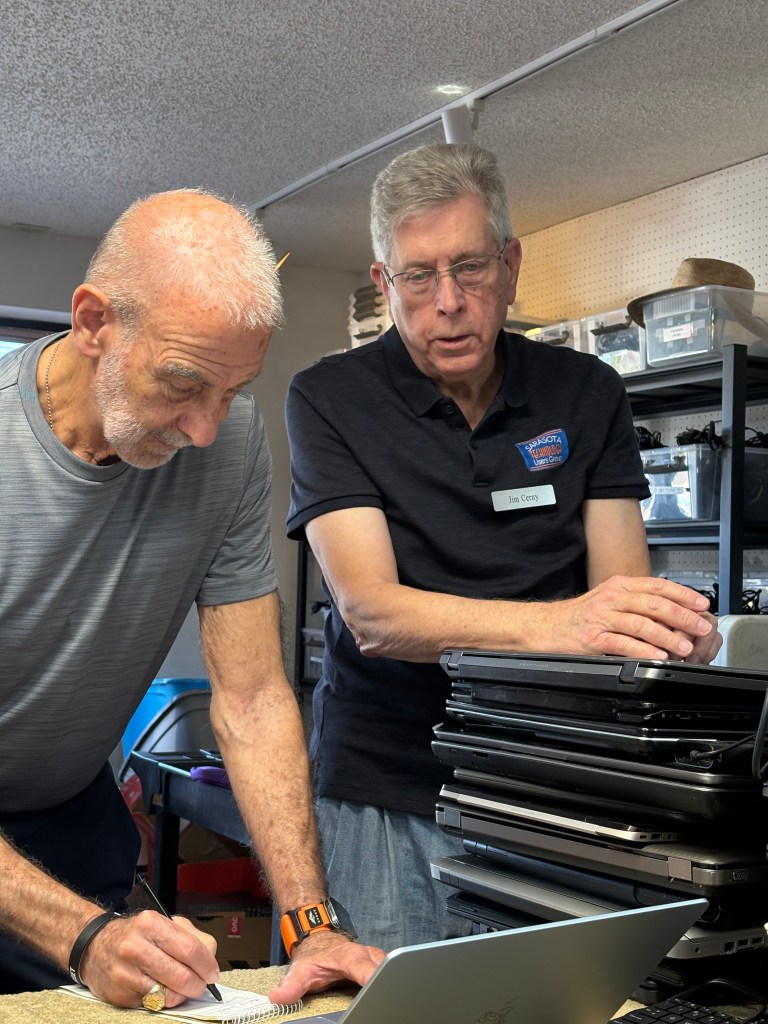
Refurbish Group Manager Mike Hutchinson is always looking for volunteers. Think you’d like to help? This aspect of STUG is a blessing to our entire community. Learn more at https://refurbproject.org/

We hope your brain’s tick-tocking right now with something you can do to make STUG ever bigger, better, and more valuable to all of us. Remember, skill levels of our members range from “I don’t know how to turn the ‘thing’ on” to “let me show you how to disassemble and reassemble this device blindfolded, in a closet, in 27 seconds”. If you have any questions, ideas, suggestions, please don’t hesitate to reach out to us at STUG.

The truth is we’re all still learning. And volunteering with STUG is a great way to learn!

This is why we do what we do…

A dozen volunteers. 25,200 refurbished computers and counting. To strengthen our community.

And you can help them continue their incredible gifts to people, young and old, who need but cannot afford a computer. The work is volunteer, but the rent, utilities, fresh batteries and needed parts come with bills due.

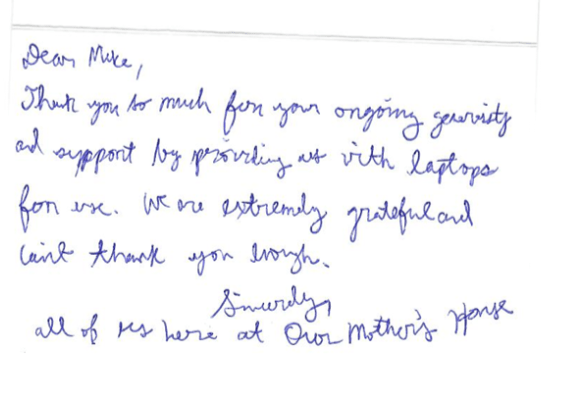
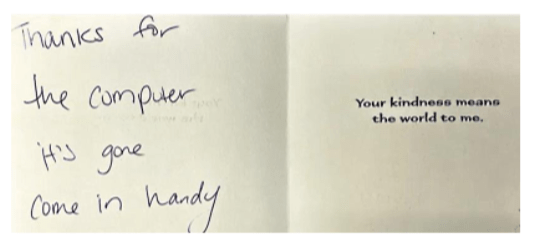
We love getting the thank-you notes. Wouldn’t you love helping us cover the expenses of the Refurb Project, and wouldn’t you even more, like to double your contribution whether it’s $25, $50, $75 or $100?

The Patterson Foundation will double unique contributions up to $100. If you wish to donate more, consider doing so in a family member’s name/ credit card to make the most of this generous doubling of your money.

Read about the Refurb Project @ Sarasota Tech Users Group here,
and learn about the Giving Challenge, April 15 & 16, here.
Our unique donation page is here, which will be active from noon on Wednesday April 15 to noon on April 16. 24 hours of joyous connection and community!

Doubling your money…

The Giving Challenge is a community-based online giving event inspiring donors and citizen philanthropists to learn more about the nonprofits and causes in Southwest Florida they care about most.

Frequently-Asked Questions

What’s it all about? The Giving Challenge is a 24-hour online fundraising event hosted by the Community Foundation of Sarasota County, connecting hundreds of local nonprofits with donors across Sarasota, Manatee, Charlotte, and DeSoto counties. The 2026 event runs noon April 15 through noon April 16, and thanks to The Patterson Foundation, donations between $25 and $100 are matched 1:1. It’s a great chance to double your impact for STUG!

What will you do with the donations? We will be fulfilling the mission of our Refurb Group. You know, those dedicated volunteers who refurbish computers for the community? The Group that has given over 25,000 computers to all aspects of Sarasota County and its neighbors. Read more about this incredible part of STUG.

Do we have to donate a specific amount? Any amount is welcome, but to qualify for matching funds, grants, and prizes, the minimum is $25, and donations must be made online.* Feel free to choose an amount meaningful to you — $92 because that’s the year you arrived in our area? The Patterson Foundation will double any donation in the $25–$100 range. If you’d like to give more than $100, having a spouse or family member donate separately will maximize the match.

How much is this costing STUG? The credit-card fee of 6% is deducted from all contributions, which pays for the processing of your gift. (So if you’d like to donate, say, $53 so STUG gets the full $50, that would be terrific!)

How has STUG gotten the word out? We’ve sent broadcast emails to all members, posted on our website, and promoted the event on Facebook. The real cost is the time and talent our volunteers have put in — and we hope you’ll spend a few minutes spreading the word too (read on…)

How can I help?  In addition to any donation you choose to make, you can help spread the word to those you know. If you maintain a personal, club, residents or business email list, that’s a great place to spread the word. If you are active in on-line forums or discussion groups, on Facebook or X or LinkedIn, there’s more folks you can alert.

But I can’t ask friends to give money to my causes! You don’t have to! They can donate to one or many of the 700 local causes participating, but of course we hope you’ll make STUG the first item in your “gift basket.”
All you have to do is ask your on-line acquaintances to visit, between noon Wednesday and noon Thursday (Yes, for you night owls: you can visit in your jammies at 3 a.m. if that’s your bag), our profile page at The Giving Partner.

Is donating on-line safe? Ultra-safe. The Giving Partner uses state-of-the-art security. If you’d still rather donate in person, stop by the Refurb Shop either morning — a STUG Board member will be happy to help.

Is my donation tax-deductible? Yes, 100%.

Will my name get on a list? The only people who will ever see your email address will be us, and that’s so we can acknowledge your gift. The foundations and the financial processing service cannot see your address. And we, of course, never reveal, rent or sell your email to anyone. Never have, never will.

I’m not available on April 15 until late. Is it worth my while to donate that night or the next morning? Anytime during the 24 hours, from noon on April 15 through until noon on April 16, the Giving Challenge is active and your donation up to $100 will be doubled.

Such good folks!

After retiring, many of our fellow citizens here in the Sarasota/Manatee area volunteer, putting their past experience to work for the good of others. Such are the crew of our Refurb Group here at Sarasota Tech Users Group.

Their good work is often noted by the media, such as today’s article in The Observer.

We send our thanks, along with thanks from the recipients of those  25,415 refurbished devices, to Anda S, Bill Crowe, Bruce C, Chuck W, Doug Weiss, Garth H, Kathy K, Randy T, Sandy M, Mike Hutchinson and most especially, Saul Lowitt!

And you can thank them too by participating in April’s Giving Challenge, which comes along only once every two years and is a major source of funds for batteries, parts, and more at the Refurb Group.

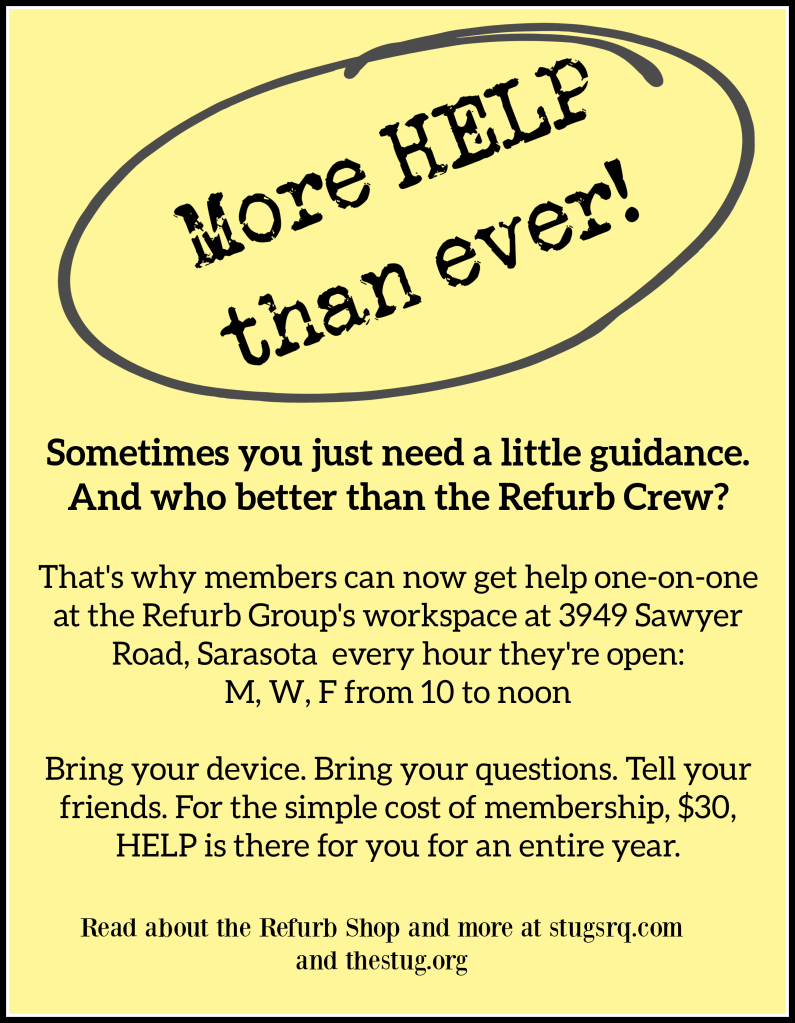
PS Did you hear? The HELP DESK is now open even longer hours!

Fabulous Fabrication: Fab Lab

Our email and Facebook notice graphic, ICYMI. Remember to open your member emails and follow us on Facebook.

The first bit of education came about while we were waiting for our STUG field trip to start. Looking around, I said to Board Director Prabhav Govindu “Wow, this really IS fabulous!” He agreed but said “It’s really Fabrication Lab”.

Which made total total sense during our hour-and-a-half tour he took members on. Laser cutting machines for wood and metal. Vinyl cutting machines and printers and a giant press iron for embellishing T-shirts. Classrooms for elementary and middle school students to learn STEAM lessons.

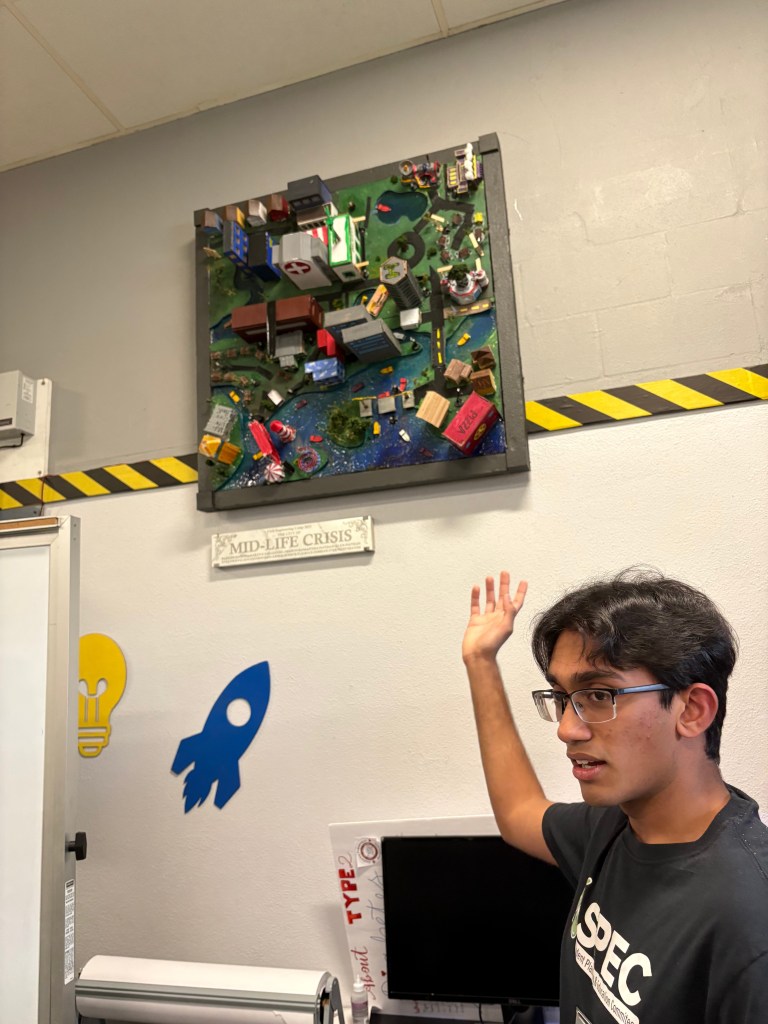
Prabhav showing the group a middle-school project as well as a marble slab engraved onsite.

STEAM stands for Science, Technology, Engineering, Arts, and Mathematics. (They added the A to the original STEM in response to feedback saying education in STEM is great, but blending technical subjects with arts (visual arts, music, design, humanities) will encourage creative thinking.

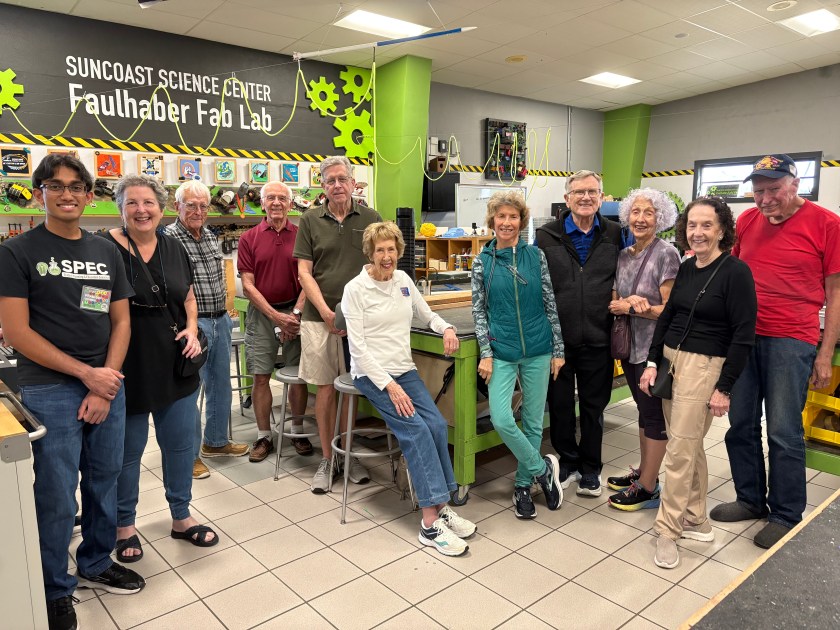
Ten STUG members enjoying their “field trip” to Suncoast Science Center.

The 3D printers were a fascinating attraction. There’s also a full woodworking room, classrooms full of craft materials for the youngest students, and take-home science kits, delivered and retrieved by Fab Lab volunteers to public and private schools and even homeschooler events.

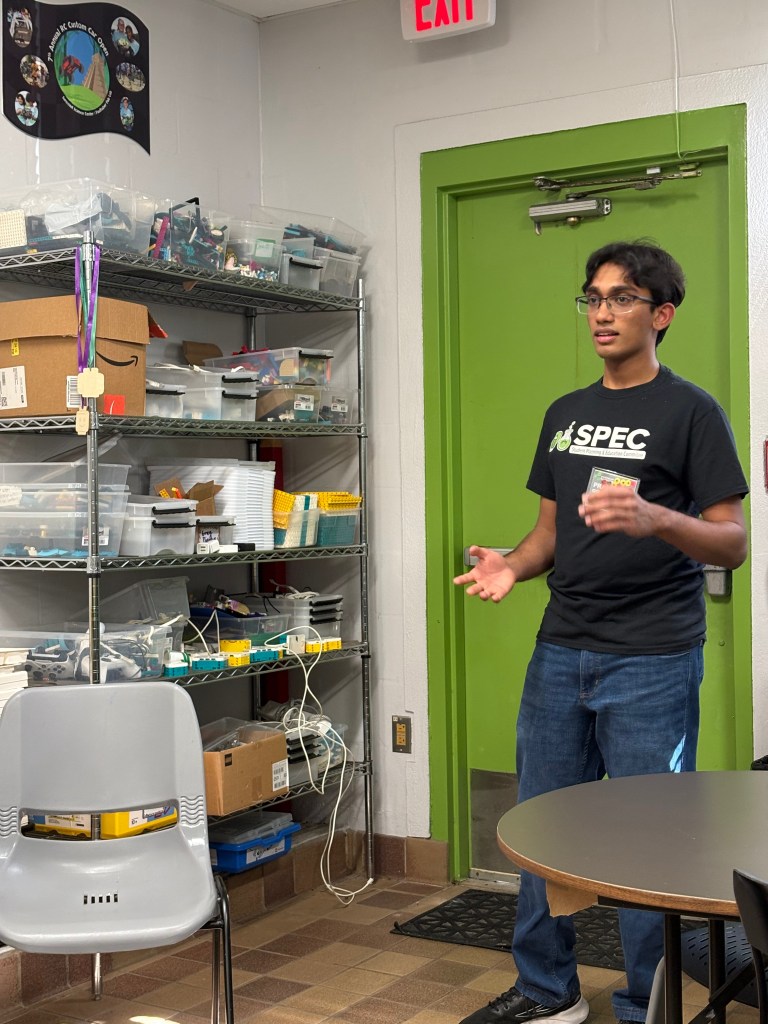
A gracious and knowledgeable guide fielding questions right and left.

Best news for our members? Supporting Suncoast Science Center with your membership also allows you to use any of their equipment by appointment, free instructions and guides as needed. Here’s where to become a member.

Our first STUG field trip was a great success! Where shall we make tracks to next time? Comment below.