
Here’s a Tuggie the Techno-Owl tip for you. (You know that Tuggie’s smart enough to know that nobody knows everything, and discrete enough to teach you things you can claim to have always known.)
A short history of a shortcut key.
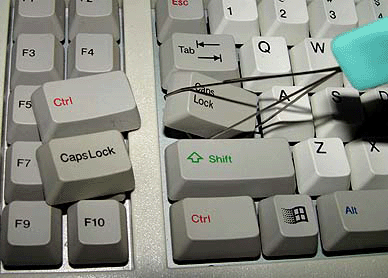
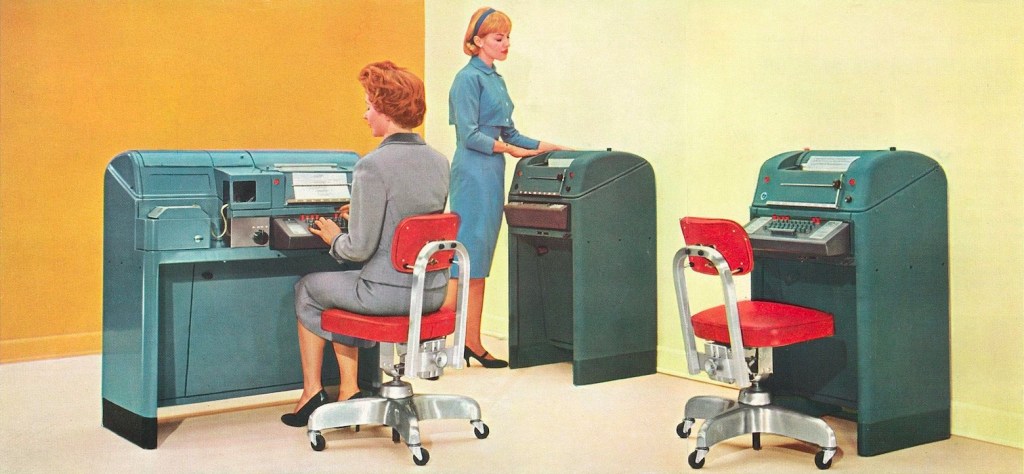
Like many other elements of the computer keyboard, the control key is a vestige of earlier technology updated and adapted to remain relevant. Originally found on teletype machines, the key produced special key codes that were not printed or displayed on the screen, but controlled some aspect of the machine’s operation. Some examples of past use of these codes include Ctrl+J for a line feed, Ctrl+H for backspace, and even Ctrl+G to ring a bell in the terminal.
So, what does the Ctrl key let you do?
Well, that depends: The Ctrl key has no function on its own. It only performs commands when combined with other keys. These commands vary depending on the active window. For example, it will perform different commands when used in a word processing program than when used in an internet browser or the operating system.Here’s a starter list of things you can do… but play around, and make note of those functions that suit how you use your computer.
Ctrl+A These two keys will select all text or other objects (warning: all really means ALL! Try it and see.)
Ctrl+B Bold highlighted text.
Ctrl+C Copy any selected text or another object.
Ctrl+D Bookmark an open web page or open font window in Microsoft Word.
Ctrl+E Center text.
Ctrl+F Open find window.
Ctrl+G Open Find in a browser and word processors.
Ctrl+H In Chrome browser, opens your browsing history. In Notepad, Microsoft Word, and WordPad it opens Find and Replace.
Ctrl+I Italicize text.
Ctrl+J View downloads in browsers and set justify alignment in Microsoft Word.
Ctrl+K Create a hyperlink for the highlighted text in Microsoft Word and many HTML editors.
Ctrl+L Select address bar in a browser or left align text in a word processor.
Ctrl+M Indent selected text in word processors and other programs.
Ctrl+N Opens a new window in Chrome browser; in other programs, creates a new page or document.
Ctrl+O Open a file in most programs.
Ctrl+P Open a print window to print the page you’re viewing.
Ctrl+R Reload page in browser or right align text in a word processor.
Ctrl+S Save the document or file.
Ctrl+T Create a new tab in a browser or adjust tabs in word processors.
Ctrl+U Underline selected text.
Ctrl+V Paste any text or another object that has been copied.
Ctrl+W Close open tab in a browser or close a document in Word.
Ctrl+X Cut selected text or another object.
Ctrl+Y These keys will redo any undo action.
Ctrl+End Moves cursor to the end of a document instead of end of the line.
Ctrl+Z Pressing these two keys will undo any action.
Ctrl+Esc Open the Windows Start Menu.
Ctrl+Tab Switch between open tabs in browsers or other tabbed programs.
Ctrl+Shift+Tab will go backwards (right to left).
More info:
- https://www.easytechjunkie.com/what-does-the-control-key-do.htm
- Interested only in using Ctrl in MS Word? Here’s a chart. (And how to say Ctrl in German, just in case.)
- Just what is teletype… and what TTY stands for (I always wondered, says Tuggie the Techno-Owl.)
- (Keyboard photo from pcmag.com)
- (Vintage photo from blog.atom.io)
Discover more from STUG
Subscribe to get the latest posts sent to your email.


Excellent reference!
LikeLike