The STUG Refurb Project in Sarasota is such an acclaimed and established volunteer project, that…
Things were hopping at the STUG Refurb Center.
Some honored visitors dropped by the Refurb Center other day. From left to right, we have SPCUG man (that’s what the guys call the Tshirt with our old avatar), Phil Sorrentino – past President and Monitor contributor, Marshall DuBois – Web Master, and Saul Lowitt – one of the founders of Manasota IBM-PC Users Group and long time instructor.
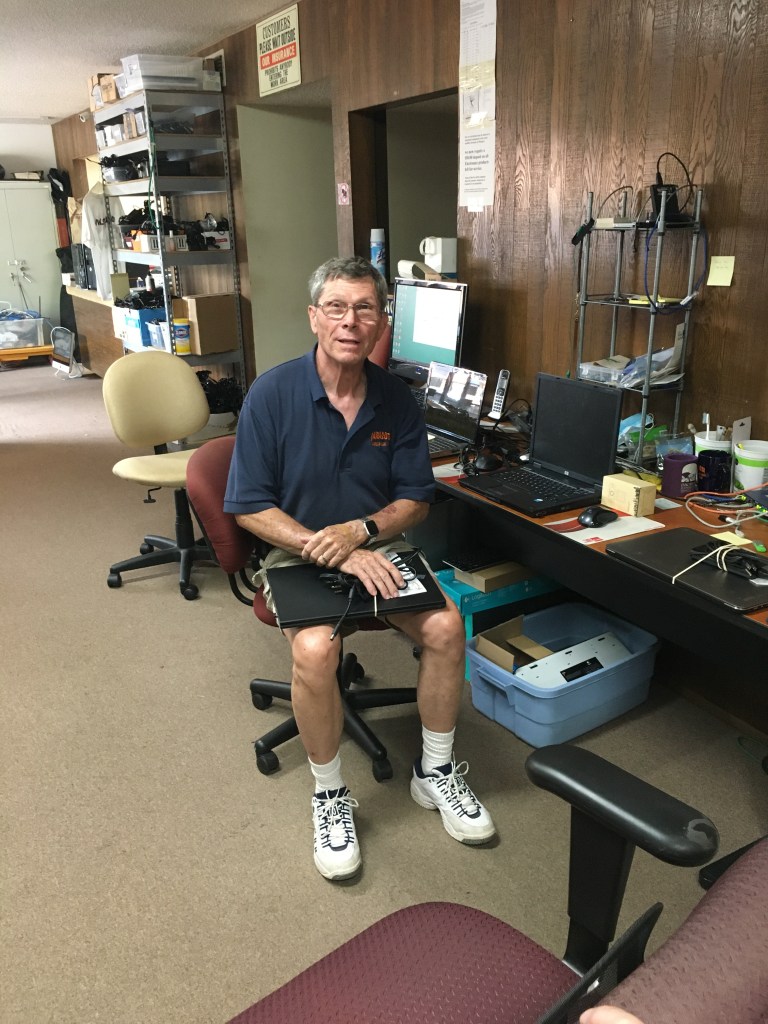
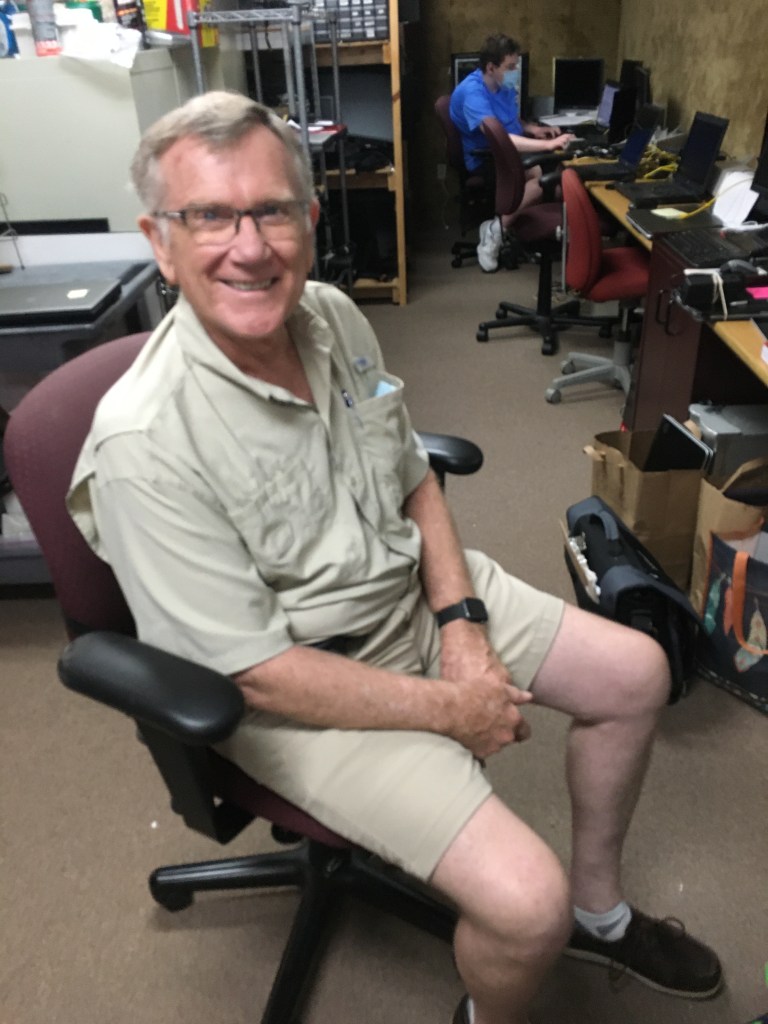
Hard at work that day, Mike Hutchinson (below, left) and Bill Crowe (below, right) (that’s Adam in the background, working away at his station) gave a tour of the workspace. Everything from cables to caddies is neatly sorted and stored for just-in-time reuse in configuring laptops and desktops, whenever someone/ some organization in the community mentions a need for a device.
UPDATE:We got so excited about our guests, that we forgot the real reason for this post, which was to share with you just a single month’s impact on our community: In April the Refurbishing Project refurbished 94 computers. In addition, 5 computers were repaired. Equipment was donated this month to:Children’s Guardian Fund, Children First, Career Source Suncoast, and Literacy Council of Sarasota
Cheers to an ongoing community resource run by volunteers and fueled by your donations. Want to know more?
Seriously, our member newsletter is worth the price alone. And that’s before you explore our free-to-members class schedule.
If you aren’t a member of the Sarasota Tech Users Group, this is what you’re missing JUST in this month’s monthly email, which is JUST one of the benefits membership brings you:
If you use Zoom for business or family gatherings, how to stop dastardly and often offensive zoombombing by nasty folks.
Love your “Notes” on your phone, but hesitate to put private items there (your password to your savings account, the photos of your credit cards)? Learn how to lock your notes, so if your phone is lost or stolen, you still have privacy.
Did you know that you can have a temporary phone number? Great when you’re selling that PT Cruiser or those extra lawn chairs….
FREE stuff. The single ink cartridge I snagged? Worth almost 3 times my yearly dues.
How Walmart saved one man thousands of dollars, by being alert to scam spams focused on soft-hearted seniors.
To say nothing of May’s upcoming monthly Zoom meeting. If you love glimpsing into the future, watch Bill Crowe, one of our most popular member-teachers, present some of the big technological advances that we, as consumers, will be seeing in the next few years.
No one knows how webcams actually work, so… You can become a Zoom pro and impress co-workers with these tips!
Don’t join five minutes after the meeting’s started. It’s happened to us all. We’re all set for the meeting… but where oh where did I put the darn link to join! This tip’s the one I personally need the most. I’m not late I’m just disorganized.Solution here.
Don’t distract yourself by obsessing on your own image. Here’s how to hide the video of you from yourself, while allowing others to see that you’re engaged and alert.
Sometimes, you just don’t want to be seen by everyone… but showing just your name seems, well, unfriendly. Here’s how to set and use a profile picture instead of live video during a Zoom. Another take on the subject. And, since nothing techy ever seems to be glitch-free, here’s what to do when that doesn’t work. (Personal tip? You have to do it once the meeting’s underway. Good reason to find that darn link and “arrive” early.)
And in conclusion, an article full of advice that the authors say “you probably shouldn’t take”… complete with another use for Post-It notes.
Tuggie’s smart enough to know that nobody knows everything, and discrete enough to teach you things you can claim to have always known.
Welcome to the first post by Tuggie, the Techno-Owl. Tuggie’s smart enough to know that nobody knows everything, and discrete enough to teach you things you can claim to have always known.
Howdy, my little owlets. Here’s my first Hint Hoot. Hope to see you often here on the STUG blog.
When in doubt, right-click. I finally got it one day when, for the umpty-umpth time, I screamed at my screen and cursed at my computer. I actually wrote When in doubt, right-click on a Post-It and stuck it to the monitor.
It’s a good rule. Before you start thinking the programmer was a total idiot, the computer is having a meltdown, or the stars are misaligned and you might as well stop working and go float around in the pool with a rum and coke balanced on your tummy…. right-click.
Aha! There the little bugger is: just the menu choice you were clicking the left mouse button for, over and over, swearing it had to be there. All you had to do was…right-click. You’ll more than likely find a “contextual” menu. That means you’ll see a list of things you can do with whatever it is you clicked on.
Life lesson learned: take a different approach. Try a different path to your destination. And sometimes thinking outside the box works before you have to resort to A: throwing the whole problem out the window in disgust or B: dousing yourself with rum and cokes.
The ability to capture an image of a whole computer screen or Window has been around since the 1960’s. It comes in handy for anyone who wants to include a portion of a screen, such as a picture, group of text, chart or graph, in another place. For example, you might be typing a letter to a friend and want to include a map of your recent vacation trip from an online catalog. You can open both the letter and the page that contains the map.
The original capture tool was the Print Screen key (PrtScr) on the keyboard. At first, this basic tool could capture only the content of the whole screen or an active Window. You can still find Print Screen on most keyboards as one of the F keys along the top, but to use it in Windows 10, you must first enable it. Click Start > Settings > Ease of Access > Keyboard (in left pane near the bottom) > Print Screen Key. Turn on “Use the Print Screen key to open screen snipping.”
Windows currently offers three capture tools.
Snipping Tool was introduced in 2002 as part of the Microsoft Tablet PC. In 2006, it became one of the accessories in the VISTA operating system. Besides the basic captures of Windows and screens, it added freeform captures and editing tools like colored pens and an eraser. It also added a time delay of 1 to 5 seconds to give the user time to open a menu which would otherwise not be visible during the capture. Snipping Tool captures are saved as photos (.jpg files). They can be copied into MS Paint for more extensive editing. Once saved and edited, they can be pasted into the Office apps, such as Word documents, Excel spreadsheets, Outlook emails, or PowerPoint presentations.
Screenshot was introduced in 2017 in the Word, Excel, PowerPoint, and Outlook applications. It is a newer version of the Print Screen key and is located on the insert tab in the Illustrations or Images group. It can capture the whole screen, a Window, or a portion of a screen or Window. Detailed instructions for its use can be found by holding your mouse pointer over the Screenshot icon, then clicking Tell Me More.
Snip and Sketch is the newest Windows 10 capture tool, which was part of the Fall 2018 Windows update. It has all the features of Snipping Tool plus a few new ones to accommodate the features of current devices, such as touch screens. It has a ruler and a protractor to use if a capture needs to be a specific dimension. Its time delay choices are 3 or 10 seconds. Snip & Sketch also lets you crop the snip before leaving the app. A capture can be shared with nearby devices using Bluetooth and Wi-Fi. In Windows 10, pressing the enabled Print Screen key will open the Snip & Sketch mini toolbar, or you can open it by pressing the Windows key + Shift + S.
“As a longtime fan of Snipping tool, I was concerned when I learned that it will be replaced soon by Snip & Sketch,” says Nancy. “However, Snipping Tool will still be available at no cost in the Microsoft store. The more I use Snip & Sketch, the more I find it to be a good upgrade, but I’m keeping them both among my apps until I decide which is my favorite. Everyone needs a capture tool.”
This article courtesy of the STUG e-newsletter, the Monitor, and author Nancy DeMarte, First Vice President and Education Chair of thestug.org
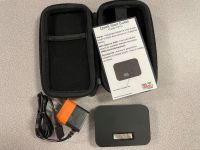
Our county library system has something our tech users can really appreciate. Free internet access to all those library patrons 18 or older. Old news? Nope. This time it’s anywhere you want to access the internet. Any. Where. You. Are.
Coverage of this service is pretty much everywhere in our county. You can borrow the device for up to two weeks and even renew if available. Isn’t this a wonderful use of our tax dollars!
Why would I need a mobile hotspot?
When you’re away from home, are you tired of connecting to public wi-fi that’s slow, unreliable and insecure? Then bring your own. A mobile hotspot can deliver a strong, fast and secure online connection just about wherever you go. Like a mobile phone, but without the ability to make calls, a mobile hotspot is all about data. It works by taking an LTE connection and converting it into a wi-fi signal that your laptop or smartphone can use.
Maybe the best feature of mobile hotspots is security; its wi-fi network is protected with WPA-2 encryption, making it just as secure as any home router. Most public wi-fi networks, like at a coffee shop or an airport, aren’t nearly that safe. Or as reliable. A dedicated mobile hotspot has its advantages over a smartphone hotspot. There’s no risk of going over your cellular data limit or reducing your phone’s battery life. It can provide greater wi-fi range and more devices can connect to it for internet access.
Our compeers at APCUG are holding a Zoom for World Back Up Day on March 31 and are inviting STUG members to watch. They write:
WE WILL BE TAKING THE PLEDGE 😉 HOW AND WHY TO BACK UP YOUR HARD DRIVE Don’t lose any or all of your important data: documents, photos, music, or videos. • Your computer could be hit by a virus. • Ransomware could hold your files hostage. • You should be prepared for a natural disaster • Hard drives sometimes fail.
We will look at an overview of backing up your hard drive and your smartphone during this workshop. There will also be demonstrations of various back-up apps: Bob Gostischa will demo Aomei, Bill James will show us how the Windows 10 File History works, plus another (TBD) demos of backup programs. Maybe you will find the one for you!